Key takeaways
- Find the best wireless trackpad for Mac or Windows, from the glass Apple Magic Trackpad to budget multi-device pads for home offices and travel.
A wireless trackpad turns a desktop into a calmer place to work. Instead of dragging a mouse across a pad, you point, scroll, and switch windows with finger gestures on a flat surface. For Mac users, it feels like a natural extension of a laptop. For Windows users, a precision trackpad brings the same gestures to a desktop that never had a touch surface.
The right pick depends on your computer first and your desk second. Apple owners get the smoothest experience from an Apple pad, while Windows users should look for a precision trackpad with Bluetooth and a 2.4 GHz receiver. Size, battery type, and multi-device switching matter too, because a pad that is too small or too fussy to pair will sit unused.
As an Amazon Associate, we earn from qualifying purchases.
Quick Answer
For most Mac and iPad users, the Apple Magic Trackpad with USB-C is the best wireless trackpad overall, thanks to its edge-to-edge glass surface and Force Touch. Windows users should start with the Amazon Basics Multi-Touch Trackpad for value or the Perixx PERIPAD-706 for multi-device switching. The JOMAA Function Trackpad suits buyers who want Bluetooth, 2.4 GHz, and USB-C in one device.
1. Apple Magic Trackpad (USB-C, White)

The Apple Magic Trackpad is the benchmark other wireless trackpads are measured against. Its edge-to-edge glass surface responds to light taps, two-finger scrolling, pinch to zoom, and three-finger swipes without any visible buttons. Force Touch adds a second level of pressure, so a firm click can preview a link or look up a word.
Pairing is simple on a Mac or iPad. The trackpad connects over Bluetooth and pairs automatically with a nearby Mac, and the rechargeable internal battery lasts about a month or more between charges under typical use. Charging uses a USB-C cable, and the low profile sits flat on a desk next to a keyboard. At 6.3 inches wide and 4.52 inches deep, it takes up less desk space than a full-size mouse pad.
This is the pick for Mac-first desks, creative work, and anyone who already lives in macOS gestures. It is not the right choice for a Windows-only setup, where many of its gestures and settings are unavailable. Buyers who want a darker desk setup can look for the black version of the same model family.
Specs
- Connectivity: Bluetooth, USB-C charging
- Surface: Edge-to-edge glass with Force Touch
- Compatibility: Mac with OS X 10.11 or later, iPad with iPadOS 13.4 or later
- Battery: Rechargeable internal battery, about a month or more between charges
- Dimensions: 6.3 x 4.52 inches
- Model: MXK93AM/A
- Colour: White
2. Amazon Basics Multi-Touch Trackpad

The Amazon Basics Multi-Touch Trackpad is the straightforward budget pick for Windows desks. It offers a 6.4-inch wireless touch surface with multi-touch gesture support and dual-device control, so it can switch between two paired devices without re-pairing each time.
Setup is plug-and-play on Windows, with no extra software needed for basic pointing, scrolling, and gesture control. The black finish and slim body blend into a typical office setup, and the large surface gives room for two-finger scrolling and pinch gestures without running off the edge. It is built for Windows PCs first, so Mac users should check compatibility carefully before choosing it.
This pad suits buyers who want a simple, affordable way to add gestures to a Windows desktop or to replace a cramped laptop trackpad on a docking-station setup. It does not offer the premium glass feel or pressure-sensitive clicking of the Apple pick, but it covers the everyday gestures well.
Specs
- Connectivity: Wireless with dual-device control
- Surface: 6.4-inch multi-touch surface
- Compatibility: Windows PC
- Colour: Black
- Design: Slim, low-profile body for desktop use
3. JOMAA Function Trackpad (White)

The JOMAA Function Trackpad is the most flexible connector in this roundup. It supports three connection modes: Bluetooth, 2.4 GHz wireless, and USB-C wired, and it can pair with up to three devices and switch between them.
The touch panel measures 160 by 115 mm and uses a glass surface with Precision Touch support, so Windows gestures respond quickly and consistently. It is designed for Windows 10 and 11 systems and is not applicable to Mac, so Apple users should skip it. The wide surface gives enough room for four-finger gestures without crowding.
This is a strong pick for multi-device Windows users and for anyone who wants a backup wired mode for days when wireless pairing is unreliable. The trade-off is the Windows-only focus, so buyers with a mixed Mac and Windows desk should choose a cross-platform pad.
Specs
- Connectivity: Bluetooth, 2.4 GHz wireless, USB-C wired
- Surface: 160 x 115 mm glass touch panel with Precision Touch
- Compatibility: Windows 10 and 11, not applicable to Mac
- Devices: Pairs with up to three devices
- Colour: White
- Manufacturer: JOMAA
4. Dell TP713 Wireless Touchpad

The Dell TP713 is the veteran of this list. It was designed to bring Windows touch gestures to desktops, with a smooth glass surface, edge-to-edge swiping, and support for multi-finger gestures. It connects through a nano USB receiver rather than Bluetooth, which keeps pairing simple on older Windows machines.
The pad measures 5.3 by 3.9 inches and weighs 7.2 ounces, with a slightly raised profile that gives the hand a natural resting angle. It runs on two AA batteries and lists an average battery life of three months. The receiver stores inside the body when travelling, which helps on a shared or hot desk.
Availability is the main caveat. The Amazon listing showed the TP713 as currently unavailable in its most recent crawl, so buyers should treat it as a legacy pick and check current stock before planning a setup around it.
Specs
- Connectivity: 2.4 GHz wireless via nano USB receiver
- Surface: Smooth glass touch surface
- Compatibility: Windows, tested and validated on Dell systems
- Battery: 2 AA batteries, average battery life of 3 months
- Dimensions: 5.3 x 3.9 x 1.2 inches
- Weight: 7.2 ounces
- Item model number: X4YJC
5. Perixx PERIPAD-706 Wireless Slim Touchpad
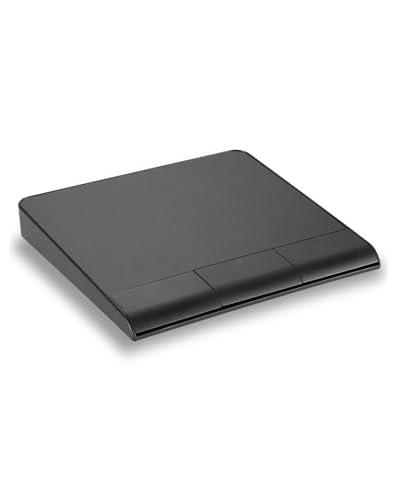
The Perixx PERIPAD-706 is the multi-device Windows pick for buyers who want modern connectivity at a budget tier. It connects over Bluetooth and 2.4 GHz RF, switches between up to three devices, and recharges over USB-C. The large 5.31 by 4.57 inch surface supports multi-touch gestures, including swiping and pinch to zoom, and non-slip rubber feet keep it steady.
Perixx lists the PERIPAD-706 for Windows 7, 8, 10, and 11, and states that it is not compatible with Mac OS. The slim 0.55 inch profile slips into a laptop bag easily, and the firmware-updated version was released to address earlier tracking complaints. The body is plastic rather than glass or aluminium, and the click is louder than on the premium picks.
This pad suits Windows users who juggle a desktop and a laptop, travel between desks, or want a spare trackpad for a second workstation. Buyers who need macOS support or a silent click should look elsewhere.
Specs
- Connectivity: Bluetooth and 2.4 GHz RF, switches between up to three devices
- Surface: 5.31 x 4.57 inch multi-touch surface
- Compatibility: Windows 7, 8, 10, and 11, not compatible with Mac OS
- Battery: Rechargeable via USB-C
- Dimensions: 5.31 x 4.57 x 0.55 inches
- Design: Slim body with non-slip rubber feet
How to Choose
Start with your operating system. Apple trackpads are built for macOS and iPadOS, and Windows precision trackpads are built for Windows gesture settings. A pad that lists the wrong platform may still move a cursor, but gestures and scrolling may not behave as expected.
Next, check connectivity. Bluetooth keeps a USB port free and works well for a single computer, while a 2.4 GHz receiver is more reliable on older machines. Tri-mode pads that add a wired USB-C option are the safest choice for multi-device desks.
Size matters more than it looks on a product page. A surface under five inches wide feels cramped for two-finger scrolling, while a surface over six inches wide gives room for three- and four-finger gestures. Measure the space beside your keyboard before ordering.
Battery type decides how often you think about the device. Rechargeable pads charge over USB-C and need a cable every few weeks, while battery pads run for months on AA or AAA cells. Multi-device switching matters if one desk serves two computers, and a glass surface stays smoother under long sessions than a plastic top.
Who Should Skip
Skip a wireless trackpad entirely if you play fast-paced games, do fine pixel work in design software, or need programmable buttons for macros. A mouse gives finer control and extra buttons that a flat pad cannot match. Gamers and CAD users will be happier with a dedicated mouse, and many keep a trackpad beside the mouse for scrolling and gestures rather than replacing it.
Mac users should skip Windows-only pads, and Windows users should skip Apple-only pads, unless the pad is used as a basic pointer with no gestures. Buyers with very limited desk space should also think twice, because a trackpad needs a clear area beside the keyboard, and a cramped setup removes the comfort advantage.
Frequently Asked Questions
Is a wireless trackpad better than a mouse?
It depends on the task. A trackpad is better for scrolling, swiping between desktops, and gesture shortcuts, and it keeps the hand in one place. A mouse is better for precise pointing, gaming, and long sessions in design software. Many desk workers use both.
Do wireless trackpads work with Windows and Mac?
Some do, but many are built for one platform. Apple trackpads are designed for Mac and iPad, while most budget pads are built as Windows precision trackpads. Check the compatibility line before ordering, and look for a pad that lists your exact operating system version.
How long does a wireless trackpad battery last?
It varies by model and use. Rechargeable pads often last several weeks between charges, while battery-powered pads can last a few months on a set of AA or AAA cells. Leaving the pad switched on overnight shortens battery life, so switch it off when it is not in use.
Can I use a wireless trackpad with a laptop that already has one?
Yes. An external trackpad works alongside a built-in laptop trackpad, and most systems let both control the same cursor. This is useful on a docking-station setup, where the laptop sits closed or off to the side.
Final Verdict
The Apple Magic Trackpad with USB-C is the best wireless trackpad overall for Mac and iPad users, with the smoothest glass surface and the most polished gestures in this roundup. Windows users get the best value from the Amazon Basics Multi-Touch Trackpad, while the Perixx PERIPAD-706 is the better choice for a multi-device Windows desk. The JOMAA Function Trackpad covers buyers who want every connection option in one device, and the Dell TP713 remains a dependable legacy Windows pick when it is in stock. Match the pad to your operating system first, then to your desk space and device count.