Our Short List of 3

- View on Amazon: https://www.amazon.com/dp/B0C4DW5GFM
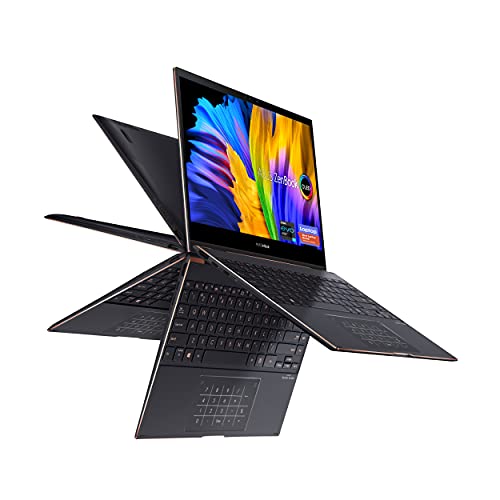
- View on Amazon: https://www.amazon.com/dp/B08H6SCT6Q
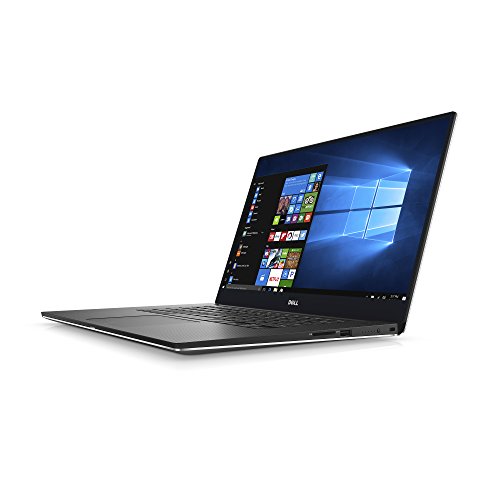
- View on Amazon: https://www.amazon.com/dp/B01MG1KFQK
All 3 Picks at a Glance
| Product | Specs | Action |
|---|---|---|
| 1. Dell XPS 15 9520 — 15.6-Inch 4K OLED Touch Performance Laptop |
| Check price on Amazon |
| 2. ASUS ZenBook Flip S 13 UX371EA-XH77T — 13.3-Inch 4K OLED Touch Convertible |
| Check price on Amazon |
| 3. Dell XPS 15 9560 — 15.6-Inch 4K Ultra HD Touch Laptop |
| Check price on Amazon |
Key takeaways
- Compare 4K touch laptops with page-confirmed UHD and OLED touch displays, from a compact 13.3-inch convertible to 15.6-inch creator machines, before you choose.
As an Amazon Associate we earn from qualifying purchases.
A 4K touch laptop combines two things that are easy to blur together in a listing headline and surprisingly hard to confirm on the same configuration: a display with roughly four times the pixel count of Full HD, and a panel you can actually tap, swipe and, on some models, draw on. Plenty of laptops carry one of those traits without the other. Gaming machines ship with high-resolution screens that have no touch layer at all, slim convertibles include touch at 1080p, and some product families mix touch and non-touch panels under a single model name, so the configuration in the headline is not always the configuration in the box.
This shortlist keeps the bar deliberately strict. Every laptop below is a model whose Amazon US product page states both attributes for the same configuration: a 4K-class resolution and a touch screen. Where a page gives the exact pixel count, that figure is quoted, because “4K” is used loosely across the industry. One panel here is a true 3840 x 2160 UHD screen, one is an OLED panel the maker lists at 3456 x 2160 under its 4K banner, and one is an older Ultra HD design that still states both traits plainly. Screen size, processor, memory, storage and graphics all come from the product pages, so you can compare like with like.
The three picks split into clear roles. A 13.3-inch convertible suits travel, note-taking and pen work. A current-generation 15.6-inch performance laptop suits photo and video editing, CAD viewing and heavy multitasking. An earlier 15.6-inch model shows what the first wave of 4K touch design looked like and remains a reference point for buyers comparing specifications across generations. None of them is a casual purchase, so the buying guidance after the product sections matters as much as the shortlist itself: panel type, pen support, port selection and graphics hardware decide whether a 4K touch screen is a daily pleasure or an expensive compromise.
Disclosure: This article contains affiliate links. If you buy through these links, we may earn a commission at no additional cost to you.
How to Choose a 4K Touch Laptop
Confirm both attributes on the same configuration
Start with the listing itself, not the model name. Manufacturers sell the same chassis with several panels, and a family name such as XPS or ZenBook says nothing about which screen a specific listing carries. Look for two separate statements on the page: a resolution line (preferably the exact pixel count, such as 3840 x 2160) and an explicit touch statement, whether that is a touchscreen field in the specifications, a touch screen type entry, or display wording that includes touch. If either statement is missing, treat that configuration as unconfirmed and move on, however promising the headline sounds.
Understand what “4K” means on each panel
True UHD is 3840 x 2160 pixels. Some makers apply the 4K label to near-UHD panels with slightly different counts, such as 3456 x 2160 on a 3.5K-class OLED, because the horizontal pixel count sits in the same family. For editing work the practical differences are small, but the exact figure matters for scaling: a 3840 x 2160 panel at 15.6 inches renders text very small at native settings, so most owners run display scaling, and the effective workspace ends up similar across these panels. What changes the viewing experience more is panel technology. OLED screens deliver deeper blacks and stronger contrast for film and photo work, while IPS-style LCD panels have historically offered higher sustained brightness and no risk of image retention on static desktop elements.
Match the form factor to how you will touch it
A touch screen on a conventional clamshell laptop is useful for scrolling, zooming into images, tapping through presentations and annotating documents, but the screen never folds flat. A 360-degree convertible adds tablet and tent modes, which make pen input, sketching and reading far more natural, usually at the cost of some performance headroom and a smaller display. Decide honestly how often you will use touch for more than the occasional tap. If pen work, drawing or marking up documents is central to your routine, the convertible format earns its place. If touch is a convenience layered on top of keyboard-first work, a larger clamshell panel is usually the better tool.
Weigh the battery and weight trade-offs
Driving four times as many pixels takes power, and a touch digitiser adds a little weight and thickness to the lid. 4K touch laptops rarely lead their class for unplugged endurance, and the effect is strongest on smaller machines with compact batteries. If you work away from a desk for long stretches, favour the configuration with the larger battery and more efficient processor generation, keep the charger in your bag, and expect to lower brightness for long sessions, because an OLED or UHD panel at full brightness is the single biggest drain in the system.
Check graphics, ports and pen support
A 4K panel invites creative work, so the rest of the specification has to keep up. Integrated graphics handle documents, streaming and light photo edits comfortably, while a dedicated graphics chip matters for video timelines, 3D work and external monitors. Thunderbolt or USB-C ports with DisplayPort support let a single cable drive an external display and charge the machine, which keeps a desk setup tidy. Finally, confirm pen support separately from touch support: a screen can accept finger input without supporting an active stylus, and stylus compatibility, pressure sensitivity and whether a pen is included all vary by model.
The Best 4K Touch Laptops
1. Dell XPS 15 9520 — 15.6-Inch 4K OLED Touch Performance Laptop
- View on Amazon: https://www.amazon.com/dp/B0C4DW5GFM
The XPS 15 9520 is the power option in this shortlist, built around a 15.6-inch 4K OLED touchscreen that its product page lists at 3456 x 2160 with a 60Hz refresh rate, anti-reflective finish and 400-nit brightness, framed by Dell’s narrow-bezel InfinityEdge design. The page states the touch capability directly in the display description, and the specification table lists the touchscreen among the machine’s special features alongside the backlit keyboard and fingerprint reader, so both required attributes are confirmed for this configuration.
Performance hardware is a step above the convertible below. The page lists a 12th-generation Intel Core i7-12700H processor with 14 cores, 32GB of DDR5 memory and a 1TB PCIe NVMe solid-state drive, plus dedicated NVIDIA GeForce RTX 3050 Ti graphics with 4GB of GDDR6 memory. That combination suits photo editing at full panel resolution, multi-track video work, software development with heavy multitasking, and driving external displays; the page notes support for expansion to multiple external monitors through its Thunderbolt 4 ports. Connectivity includes two Thunderbolt 4 USB-C ports, an additional USB 3.2 Gen 2 Type-C port, a headphone and microphone combo jack, Intel Killer Wi-Fi 6 and Bluetooth 5.2, and the machine ships with Windows 11 Home.
Choose this model if the 4K touch panel is a working tool rather than a novelty: colour-critical viewing on an OLED screen, enough memory for large project files, and discrete graphics for rendering and export work. Its size makes it a desk-and-bag machine rather than an everywhere companion, and that is the honest trade for the largest, most capable screen here.
2. ASUS ZenBook Flip S 13 UX371EA-XH77T — 13.3-Inch 4K OLED Touch Convertible
- View on Amazon: https://www.amazon.com/dp/B08H6SCT6Q
The ZenBook Flip S 13 takes the opposite approach to the Dell: the smallest body in this shortlist, wrapped around a 13.3-inch 4K UHD OLED touch display at a full 3840 x 2160 resolution. Its product page states the resolution, lists the resolution class as 4K, records a capacitive touch screen type, and describes the human-interface input as a touchscreen with stylus support, so the touch confirmation here is unusually thorough. The 360-degree ErgoLift hinge folds the screen into laptop, tent and tablet positions, which makes this the natural pick for pen notes, sketching and reading.
Inside, the page lists an Intel Core i7-1165G7 processor with Intel Iris Xe integrated graphics, 16GB of memory and a 1TB solid-state drive, with Thunderbolt 4 connectivity, a TPM security chip and Windows 10 Pro as shipped in this configuration. The backlit keyboard and touchpad round out a specification aimed at mobile professionals rather than render workloads. Integrated graphics are the compromise: documents, browsing, streaming, presentations and light photo work run comfortably, but heavy video timelines and 3D projects belong on the Dell above.
Choose this model if portability and pen input lead your list. It is the only true convertible here, the only one whose page confirms stylus support alongside touch, and its exact-UHD panel is the sharpest per inch in the group thanks to the compact 13.3-inch size.
3. Dell XPS 15 9560 — 15.6-Inch 4K Ultra HD Touch Laptop
- View on Amazon: https://www.amazon.com/dp/B01MG1KFQK
The XPS 15 9560 is the earlier-generation entry, included because its product page still states both defining attributes with unusual clarity: an UltraSharp 4K Ultra HD display at 3840 x 2160, described on the page as a touch display, in a 15.6-inch InfinityEdge chassis cut from a single block of aluminium. The specification summary confirms the 3840 x 2160 screen resolution, a Core i7-7700HQ processor, 16GB of DDR4 memory, solid-state storage and NVIDIA GeForce GTX 1050 dedicated graphics in this configuration.
Set against the 9520, the generational gaps are plain: an older quad-core processor, slower memory standard and earlier graphics architecture. What has not changed is the design logic — a large, colour-rich 4K touch panel in one of the more compact 15.6-inch bodies of its era, starting at just under four pounds according to the page. For buyers comparing specifications across XPS generations, or anyone whose workload is documents, browsing, media and light editing rather than current creative suites, it documents exactly what the first mature wave of 4K touch laptops provided. Because this is an older listing, confirm the exact configuration and condition on the page before ordering, since specifications varied across the model’s production run.
Comparison Table
| Model | ASIN | Display | Touch evidence on page | Processor | Memory / Storage | Graphics | Form factor |
|---|---|---|---|---|---|---|---|
| Dell XPS 15 9520 | B0C4DW5GFM | 15.6″ 4K OLED, 3456 x 2160 | Touchscreen stated in display description and features | Intel Core i7-12700H | 32GB DDR5 / 1TB SSD | NVIDIA RTX 3050 Ti 4GB | Clamshell |
| ASUS ZenBook Flip S 13 UX371EA-XH77T | B08H6SCT6Q | 13.3″ 4K UHD OLED, 3840 x 2160 | Capacitive touch type; touchscreen with stylus support | Intel Core i7-1165G7 | 16GB / 1TB SSD | Intel Iris Xe integrated | 360° convertible |
| Dell XPS 15 9560 | B01MG1KFQK | 15.6″ 4K Ultra HD, 3840 x 2160 | Touch display stated in product description | Intel Core i7-7700HQ | 16GB DDR4 / SSD | NVIDIA GTX 1050 | Clamshell |
Frequently Asked Questions
Is every 4K laptop also a touch laptop?
No. Resolution and touch are independent options, and many high-resolution laptops, especially gaming and workstation models, ship with non-touch panels. That is why this shortlist only includes configurations whose product pages state both a 4K-class resolution and a touch screen for the same listing.
What is the difference between 3840 x 2160 and 3456 x 2160?
Both sit in the 4K family. 3840 x 2160 is the standard UHD grid, while 3456 x 2160 is the slightly narrower grid Dell uses on this OLED panel. In daily use the workspace and sharpness feel very similar; the panel technology, brightness and colour behaviour matter more than the modest difference in pixel count.
Does a 4K touch screen support a stylus automatically?
No. Finger touch and active pen support are separate features. The ZenBook Flip S 13 page explicitly lists touchscreen input with stylus support, while the Dell pages confirm touch input without the same pen statement, so check the exact listing if pen work matters to you.
Will a 4K display make text too small to read?
At native resolution, interface text is small on all three panels. Windows display scaling enlarges text and controls while keeping the panel’s sharpness, and it is the way most owners run these machines day to day. Budget a few minutes during setup to settle on a scaling level that suits your eyesight and screen size.
Which of these suits video editing best?
The XPS 15 9520, on specification: it pairs the large OLED panel with the most memory in this group and dedicated RTX graphics, which timeline playback and exports rely on. The ZenBook Flip S handles light editing and is far easier to carry, while the 9560 reflects an earlier generation’s performance ceiling.
Conclusion
The right 4K touch laptop depends on which half of the name you lean on. For touch as a working input — pen notes, sketching, tablet-mode reading — the ASUS ZenBook Flip S 13 is the coherent choice, with an exact-UHD OLED panel and page-confirmed stylus support in the most portable body here. For the 4K panel as a creative canvas, the Dell XPS 15 9520 brings the memory, processor and dedicated graphics to use its OLED touchscreen properly. The XPS 15 9560 stands as the earlier-generation reference, still clearly specified on both attributes. Whichever you choose, repeat the discipline this shortlist used: open the exact listing, find the resolution line and the touch statement for that configuration, and only then compare the rest of the specification.