Key takeaways
- Compare the 2 best ASUS sound cards for desktop PCs, from the 5.1-channel Xonar SE to the 7.1-channel Xonar AE, and choose the right PCIe card.
A dedicated sound card is worth buying only when you know exactly what your onboard audio cannot do for you. Most modern motherboards already produce clean stereo sound for everyday listening, so the real decision is narrower: do you need a stronger headphone amplifier, true multi-channel surround output, or cleaner analogue circuitry for a speaker set you already own? If the answer is none of those, a new card changes very little.
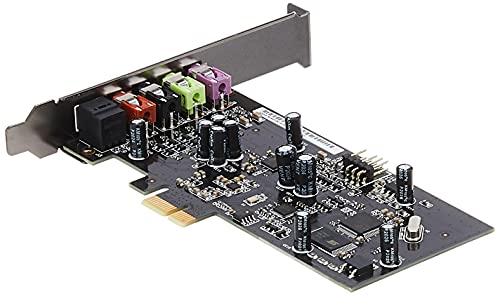
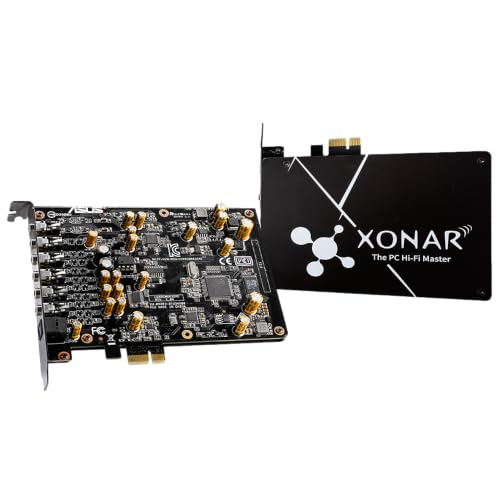
This article is for desktop PC owners who want that specific upgrade: gamers who play with wired headphones, listeners who own demanding headphones, and people building a home theatre PC around a surround speaker set. Both cards below are ASUS Xonar models, chosen from the product names and specifications shown on their Amazon product pages, so you can match each card against your speakers, your headphones, and the free slot inside your case before you buy. The shortlist is small on purpose, so each card gets proper attention.
Quick Picks
As an Amazon Associate we earn from qualifying purchases
| Product | Best for | Key spec from title |
|---|---|---|
| ASUS Xonar SE | A first upgrade from onboard audio for stereo and 5.1 setups | 5.1-channel, 192kHz/24-bit, 116dB SNR PCIe card |
| ASUS Xonar AE | Gamers and film watchers with a 7.1 speaker set or demanding headphones | 7.1-channel, 192kHz/24-bit, 110dB SNR, 150ohm headphone amp |
How to Choose
Match the channel count to your speakers
A 5.1 card drives front left and right, centre, two surround speakers, and a subwoofer, which covers the speaker layout most living rooms and desks actually have. A 7.1 card adds two extra side surround channels, and those only matter if you own seven speakers plus a subwoofer and sit where the side channels can reach you. Buying a 7.1 card for a pair of stereo headphones wastes the extra channels entirely, because headphones cannot reproduce discrete side surround speakers. Count your speakers first, then buy the channel count that matches them, and spend the difference on better headphones, a better centre speaker, or a subwoofer that fills out the low end instead.
Check the headphone amplifier before you buy
Onboard audio often struggles with high-impedance headphones, producing quiet sound with weak bass and little dynamic range. A built-in headphone amplifier solves that, but only if it is rated for your headphones. The Xonar AE carries a 150ohm headphone amplifier, a concrete figure you can compare against the impedance printed on your headphone box or specification sheet. If your headphones sit near or above that figure, the amplifier rating becomes the deciding factor, and a card without a strong amplifier is a poor buy no matter how good its other numbers look. Check the impedance figure before comparing cards: it shows whether the amplifier is a luxury or a necessity.
Understand sample rate and bit depth
Both cards here support 192kHz/24-bit playback, which describes hi-res audio: more samples per second and more detail per sample than standard CD-quality audio. That capability only improves what you hear when your music files or streaming service actually supply hi-res audio, and when the rest of your chain, meaning headphones or speakers, is good enough to reveal it. Playing ordinary compressed audio through a hi-res card will not add detail that was never recorded. Treat 192kHz/24-bit as headroom for good source material rather than a magic upgrade, and weigh it below the amplifier and channel count in your decision, since those two affect everything you play.
Confirm the slot, drivers, and software
Both cards connect through a PCI Express slot inside your desktop, so open your case or check your motherboard manual before ordering and confirm that a suitable slot is free and not blocked by a long graphics card. Driver support matters just as much as the hardware: the Xonar SE and Xonar AE list Windows 10 compatibility on their Amazon pages, so check the ASUS support page for the latest driver for your exact Windows version before you buy. The AE also ships with Sonic Studio software for adjusting the sound and Perfect Voice technology for clearer in-game communication, which are worth having only if you will actually open the software and tune it.
The 2 Best Options
ASUS Xonar SE
The Xonar SE is the straightforward entry point into ASUS sound cards, and it suits anyone whose onboard audio sounds thin or noisy but who does not want to rebuild their setup around a surround system. Its 5.1-channel output covers the common speaker layouts, its 192kHz/24-bit playback handles hi-res files when you have them, and its 116dB signal-to-noise ratio means the card itself adds very little hiss to quiet passages. It is a PCIe card built for Windows 10 desktops, so installation is a matter of seating it in a free slot, installing the driver, and selecting it as your output device in Windows without extra adapters.
Specs
- 5.1-channel surround sound
- 192kHz/24-bit hi-res audio playback
- 116dB signal-to-noise ratio
- PCI Express interface
- Windows 10 compatibility
Best for: A first dedicated sound card for stereo headphones or a 5.1 speaker set on a Windows desktop.
Watch out for: Confirm a free PCIe slot inside your case and driver support for your Windows version before ordering.
ASUS Xonar AE
The Xonar AE is the step up for people who already know their setup needs more: a full 7.1 speaker set, headphones that need real amplifier power, or both. Its 7.1-channel output feeds a complete surround layout for films and games, its high-quality ESS DAC delivers a 110dB signal-to-noise ratio, and its built-in 150ohm headphone amplifier drives demanding headphones with the volume, bass, and control that onboard audio cannot manage. An exclusive EMI back plate shields the card from electrical noise inside the case, and Sonic Studio gives you one-page control over the sound, with Perfect Voice technology cutting background noise from your microphone during games and calls.
Specs
- 7.1-channel surround sound
- 192kHz/24-bit hi-res audio playback
- 110dB signal-to-noise ratio
- 150ohm headphone amplifier
- High-quality ESS DAC
- Exclusive EMI back plate for noise shielding
- Sonic Studio software control
- Perfect Voice technology for clear in-game communication
- PCI Express interface
- Windows 10 compatibility
Best for: Gamers and film watchers with a 7.1 speaker set or high-impedance headphones.
Watch out for: The extra surround channels only help if you own the speakers to use them, so count your speakers first.
Which One Fits Your Situation
You want the simplest upgrade from onboard audio
Pick the Xonar SE. It slots into a free PCIe slot, covers stereo headphones and 5.1 speakers, and its 116dB signal-to-noise ratio gives you cleaner sound than most onboard chips without new software or rewiring. It is the right choice when your complaint is vague, such as hiss or flat sound, rather than a specific missing feature, and it leaves you free to upgrade your headphones or speakers later.
You game with wired headphones that sound quiet or flat
Pick the Xonar AE. Its 150ohm headphone amplifier is the feature that matters here, delivering the volume and bass control that high-impedance headphones need, while Perfect Voice technology keeps your microphone clear during team chat. The SE may leave demanding headphones underpowered, so the AE is worth the step up for serious headphone gaming, especially where low volume makes footsteps and dialogue hard to hear.
You run a 7.1 speaker set for films and games
Pick the Xonar AE. Only the AE offers true 7.1-channel output, so it is the only card here that can feed all seven speakers plus your subwoofer. Its EMI back plate also helps keep the analogue signal clean inside a busy case, which matters most during quiet film scenes where interference is easiest to hear, and its Sonic Studio software lets you tune the surround balance to your room.
You listen to hi-res music through good headphones
Pick the Xonar AE if your headphones are demanding, or the Xonar SE if they are easy to drive. Both cards play 192kHz/24-bit audio, so the deciding factor is your headphones, not the sample rate. Check the impedance on your headphones first, then let the amplifier rating make the choice for you, and make sure your music library actually contains hi-res files before paying for hi-res playback.
Common Mistakes
- Buying a 7.1 card for stereo headphones, where the extra surround channels can never be used.
- Ordering a PCIe card without checking that a slot is free and clear of a long graphics card or a bulky CPU cooler.
- Expecting hi-res playback to improve ordinary compressed audio files that were never recorded in hi-res.
- Ignoring driver support for your Windows version and discovering the card has no current driver after it arrives, leaving you with hardware you cannot use.
- Choosing a card by its signal-to-noise ratio alone while ignoring the headphone amplifier your headphones actually need, or the speaker layout your room actually holds, or the software you will actually open and use.
Frequently Asked Questions
Do I need a sound card if my motherboard already has onboard audio?
Not always. Onboard audio is fine for casual listening through basic headphones or desktop speakers. A dedicated card earns its place when you need a stronger headphone amplifier, true 5.1 or 7.1 surround output, or cleaner analogue sound than your motherboard provides. If none of those apply, keep your money and spend it on better headphones or speakers first, since they change the sound far more than a new card.
Will these ASUS sound cards work with my version of Windows?
Both cards list Windows 10 compatibility on their Amazon product pages. Before buying, visit the ASUS support page for the exact model and confirm that a driver is available for your Windows version, and download it in advance. Driver support is the most common reason a sound card disappoints, so settle this question before the card ships rather than after it arrives.
What is the difference between 5.1 and 7.1 surround sound?
The numbers count the speakers: 5.1 means five speakers plus a subwoofer, while 7.1 adds two side surround speakers. A 7.1 card only improves your sound when you own seven speakers plus a subwoofer and place them correctly around your seat. With fewer speakers, a 5.1 card delivers exactly the same experience, so match the card to the speakers you own rather than the bigger number on the box.
Can I install a PCIe sound card in a small form factor PC?
It depends on the case. A PCIe sound card needs a free, compatible slot with enough clearance around it, and small cases often have neither. Measure the slot and the space beside your graphics card before ordering, and check whether your case accepts full-height cards or needs a low-profile bracket. If the card cannot fit, an external USB sound device may suit your build better, since it needs no slot.