Our Short List of 3
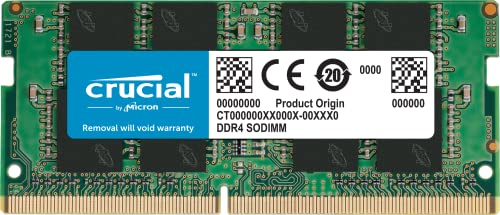
- Best for: Owners of DDR4 IdeaPad and ThinkPad laptops adding 16GB to a free slot.
- 16GB DDR4 laptop memory, single module
- Speed 3200MHz, downclocks to 2933MHz or 2666MHz
- CAS latency CL22
- Form factor SODIMM, 260-pin

- Best for: Owners of newer DDR5 Lenovo laptops who want a single 16GB module at the current speed standard.
- 16GB DDR5 laptop memory, single module
- Speed 5600MHz, downclocks to 5200MHz or 4800MHz
- CAS latency CL46, JEDEC timings 46-45-45
- Form factor SODIMM, 262-pin
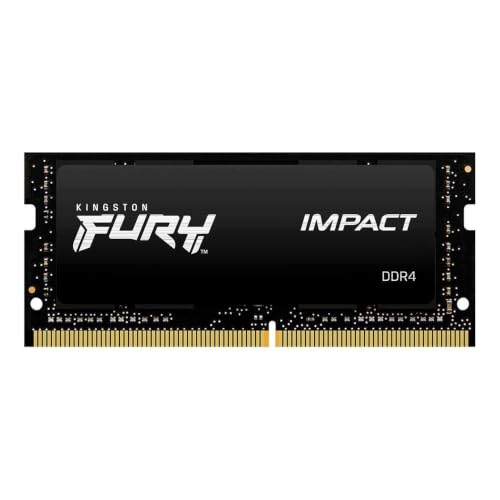
- Best for: DDR4 Legion and ThinkPad owners who want tighter timings than a standard module offers.
- 16GB DDR4 laptop memory, single module
- Speed 3200MT/s, Plug N Play default DDR4-3200 CL20-22-22 at 1.2V
- Intel XMP 2.0 profile at DDR4-2933 CL17-19-19
- Form factor SODIMM, 260-pin
All 3 Picks at a Glance
| Product | Specs | Action |
|---|---|---|
| Crucial 16GB DDR4 RAM 3200MHz Laptop Memory, SODIMM 260-Pin |
| Check price on Amazon |
| Crucial 16GB DDR5 RAM 5600MHz Laptop Memory, SODIMM 262-Pin |
| Check price on Amazon |
| Kingston FURY Impact 16GB DDR4 3200MT/s Laptop Memory |
| Check price on Amazon |
Key takeaways
- The 3 best RAM upgrades for Lenovo laptops, with DDR4 and DDR5 SODIMM modules matched to older and newer ThinkPad and IdeaPad models.
A Lenovo laptop that stutters when a browser, a spreadsheet, and a video call run together rarely needs replacing. It needs memory. The real decision is which generation the machine takes, because DDR4 and DDR5 modules look alike and even share the SODIMM shape, yet they are physically keyed differently and will not fit each other’s slots. Buy the wrong generation and the module will not seat at all; buy the right one and the same laptop gains room to breathe for years.
This guide is for IdeaPad and ThinkPad owners adding memory to a machine that still has a free slot, for Legion owners feeding a gaming laptop more headroom, and for anyone replacing a single small factory module with a larger one. Every module below was chosen from the name and specifications shown on its Amazon product page, with the emphasis on generation, speed, pin count, and voltage, since those four numbers decide compatibility.
Quick Picks
As an Amazon Associate we earn from qualifying purchases.
| Product | Best for | Key spec from title |
|---|---|---|
| Crucial 16GB DDR4 RAM 3200MHz Laptop Memory, SODIMM 260-Pin | Adding 16GB to a DDR4 IdeaPad or ThinkPad | 16GB DDR4 3200MHz SODIMM |
| Crucial 16GB DDR5 RAM 5600MHz Laptop Memory, SODIMM 262-Pin | Upgrading a newer DDR5 Lenovo laptop to 16GB | 16GB DDR5 5600MHz SODIMM |
| Kingston FURY Impact 16GB DDR4 3200MT/s Laptop Memory | A DDR4 Legion or ThinkPad that benefits from tighter timings | 16GB DDR4 3200MT/s CL20 SODIMM |
How to Choose
Confirm DDR4 or DDR5 before anything else
The generation is the first filter and the one that cannot be worked around. DDR4 SODIMMs use 260 pins and run at 1.2 volts, while DDR5 SODIMMs use 262 pins and run at 1.1 volts, and the notch on the edge connector sits in a different place so each generation only fits its own slot. Check the laptop’s specifications on Lenovo’s support page, or open the existing module and read its label, before ordering. A machine bought before roughly 2022 almost always takes DDR4; a newer Legion, ThinkPad, or IdeaPad with a 12th-generation Intel chip or a Ryzen 6000 chip is more likely DDR5.
Match the speed, then let the module downclock
Memory speed is the second number to get right, and here the rules are forgiving. A 3200MHz DDR4 module will drop to 2933MHz or 2666MHz in a laptop whose memory controller tops out lower, and a 5600MHz DDR5 module will step down to 5200MHz or 4800MHz the same way. Buying the faster module is therefore safe, but buying slower than the laptop supports leaves performance on the table. Check the maximum supported speed in the laptop’s specifications and aim for it; going above it wastes nothing but the small premium, while going below it costs speed every day.
Decide between one stick and a matched pair
Most Lenovo laptops ship with two memory slots, and filling both with identical modules runs the memory in dual-channel mode, which noticeably helps integrated graphics and heavy multitasking. A single 16GB stick is the cheapest way to add capacity when one slot is free, yet it leaves the machine in single-channel mode if the other slot holds a different size. The cleaner upgrade is a matched pair of the same capacity and speed, or two identical single sticks bought together. If only one slot is free, buy one stick that matches the capacity of the module already installed.
Check the ceiling and the soldered memory trap
Not every Lenovo laptop can be upgraded at all. Some thin IdeaPad and Yoga models solder the memory directly to the board, leaving no slot to fill, and others cap total memory at 16GB or 32GB regardless of the module size. Look up the exact model number, not just the family name, and confirm both the number of slots and the maximum supported capacity. A 16GB module is wasted in a machine capped at 16GB total, and no module at all fits a laptop with soldered memory.
The 3 Best Options
Crucial 16GB DDR4 RAM 3200MHz Laptop Memory, SODIMM 260-Pin
- Best for: Owners of DDR4 IdeaPad and ThinkPad laptops adding 16GB to a free slot.
- 16GB DDR4 laptop memory, single module
- Speed 3200MHz, downclocks to 2933MHz or 2666MHz
- CAS latency CL22
- Form factor SODIMM, 260-pin
Owners of DDR4 IdeaPad and ThinkPad laptops adding 16GB to a free slot.
Confirm the laptop takes DDR4 SODIMM and not DDR5, because the two generations are keyed differently and will not interchange.
This is the default upgrade for the large population of DDR4 Lenovo laptops still in daily use. One 16GB module at 3200MHz with CL22 timings covers the common case: an IdeaPad or ThinkPad with 8GB from the factory and a free slot waiting to be filled. The module downclocks to 2933MHz or 2666MHz in older machines, so it suits both a recent DDR4 laptop and one several years old without a compatibility gamble. Crucial’s compatibility tools, including the system scanner and the upgrade selector, let an owner confirm the exact Lenovo model before buying, which removes the guesswork that causes most returns.
Watch out for: Confirm the laptop takes DDR4 SODIMM and not DDR5, because the two generations are keyed differently and will not interchange.
Crucial 16GB DDR5 RAM 5600MHz Laptop Memory, SODIMM 262-Pin
- Best for: Owners of newer DDR5 Lenovo laptops who want a single 16GB module at the current speed standard.
- 16GB DDR5 laptop memory, single module
- Speed 5600MHz, downclocks to 5200MHz or 4800MHz
- CAS latency CL46, JEDEC timings 46-45-45
- Form factor SODIMM, 262-pin
Owners of newer DDR5 Lenovo laptops who want a single 16GB module at the current speed standard.
Verify the laptop’s maximum supported DDR5 speed first, since some models cap at 4800MHz and will run this module below its rated speed.
Newer Lenovo laptops with DDR5 slots need a different module, and this Crucial 16GB stick is the straightforward choice. It runs at 5600MHz with CL46 timings and steps down to 5200MHz or 4800MHz in machines whose memory controllers cannot sustain the full speed, so it fits a wide range of current Legion, ThinkPad, and IdeaPad models without forcing the buyer to match an exact speed figure. The 262-pin SODIMM layout, 1.1-volt operation, and non-ECC design follow the DDR5 laptop standard, and the single-rank 1Rx8 layout keeps the module broadly compatible with the memory controllers in 12th and 13th generation Intel laptops and Ryzen 6000 and 7000 machines.
Watch out for: Verify the laptop’s maximum supported DDR5 speed first, since some models cap at 4800MHz and will run this module below its rated speed.
Kingston FURY Impact 16GB DDR4 3200MT/s Laptop Memory
- Best for: DDR4 Legion and ThinkPad owners who want tighter timings than a standard module offers.
- 16GB DDR4 laptop memory, single module
- Speed 3200MT/s, Plug N Play default DDR4-3200 CL20-22-22 at 1.2V
- Intel XMP 2.0 profile at DDR4-2933 CL17-19-19
- Form factor SODIMM, 260-pin
DDR4 Legion and ThinkPad owners who want tighter timings than a standard module offers.
Check that the laptop’s BIOS will actually use the faster Plug N Play profile, since some Lenovo firmware locks memory to JEDEC speeds and would run this module at standard timings.
Kingston’s FURY Impact suits the DDR4 Lenovo owner who wants a little more than a plain JEDEC module. Its default Plug N Play profile runs at DDR4-3200 with CL20-22-22 timings at 1.2 volts, tighter than the CL22 of the standard Crucial module, and an Intel XMP 2.0 profile offers DDR4-2933 at CL17-19-19 for machines that can use it. The module is ready for AMD Ryzen systems as well, and Plug N Play automatically runs at the highest published frequency the laptop supports, so there is no BIOS tuning to do. For a Legion laptop where memory latency shows up in frame times, or a ThinkPad that lives in heavy multitasking, those tighter timings are a genuine, if modest, advantage.
Watch out for: Check that the laptop’s BIOS will actually use the faster Plug N Play profile, since some Lenovo firmware locks memory to JEDEC speeds and would run this module at standard timings.
Which One Fits Your Situation
Your IdeaPad or ThinkPad has 8GB and a free DDR4 slot
Pick the Crucial 16GB DDR4 module. One stick takes the machine from 8GB to 24GB in a single slot, the 3200MHz speed downclocks safely in older machines, and Crucial’s compatibility selector confirms the exact model before you order. It is the simplest capacity upgrade in this guide.
Your Lenovo is a newer model with DDR5 memory
Pick the Crucial 16GB DDR5 module. DDR4 sticks physically will not fit a DDR5 slot, so the generation question decides the purchase outright. The 5600MHz module steps down to 5200MHz or 4800MHz as needed, which covers the range of speeds current Lenovo laptops actually support.
You game on a Legion and want the fastest DDR4 you can get
Pick the Kingston FURY Impact. Its CL20 default timings beat the standard CL22 module, and the XMP profile gives a lower-latency option on machines that support it. The difference is modest, but on a gaming laptop where memory latency touches frame times, it is worth having.
You want to reach dual-channel mode
Pick two identical modules rather than one, matching the capacity and speed of the stick already installed if one slot is occupied. Two matching 16GB sticks, whether Crucial DDR4, Crucial DDR5, or Kingston FURY, run in dual-channel mode and give integrated graphics and heavy multitasking a lift a single stick cannot.
Common Mistakes
- Ordering DDR5 memory for a DDR4 laptop, or the reverse, and discovering the notch does not line up with the slot.
- Buying a 16GB module for a laptop whose total memory ceiling is already 16GB, gaining nothing.
- Assuming every Lenovo laptop has a free slot, when some thin models solder all memory to the board.
- Mixing two different capacities and speeds and expecting dual-channel mode, which needs matched pairs to work properly.
- Skipping the compatibility check for the exact model number and relying on the family name alone.
Frequently Asked Questions
How do I know whether my Lenovo laptop takes DDR4 or DDR5?
Check the exact model number on Lenovo’s support site, where the specifications list the memory type, or open the existing module and read its label. As a rough guide, laptops from before 2022 generally take DDR4, while newer machines with 12th-generation Intel chips or Ryzen 6000 chips are more likely DDR5.
Will a 3200MHz module work in a laptop that only supports 2666MHz?
Yes. DDR4 modules downclock to the speed the memory controller supports, so a 3200MHz stick runs at 2933MHz or 2666MHz in an older machine. The same applies to DDR5: a 5600MHz module steps down to 5200MHz or 4800MHz as needed.
Is one 16GB stick enough, or should I buy two?
One 16GB stick is enough to fix capacity problems such as stuttering with many tabs open. Two matched sticks add dual-channel mode, which helps integrated graphics and heavy multitasking, so a pair is the better choice when both slots are free or the existing module can be replaced.
Can I install laptop RAM myself?
On most upgradeable Lenovo laptops, yes: the job involves removing the bottom panel, finding the SODIMM slots, and pressing the module in at an angle until the clips catch. Power the machine down, disconnect the charger, and check the service manual for the exact panel screws and slot location before starting.